Search for SQL objects and table data in SSMS with ease

dbForge Search for SQL Server is a FREE add-in for Microsoft SQL Server Management Studio that allows you to quickly locate SQL objects, data, and text in your databases.

With dbForge Search for SQL Server, you no longer need to look through the entire SSMS Object Explorer to find a column name or text in a stored procedure. The tool helps you search for data across multiple databases, instantly returning structured results.

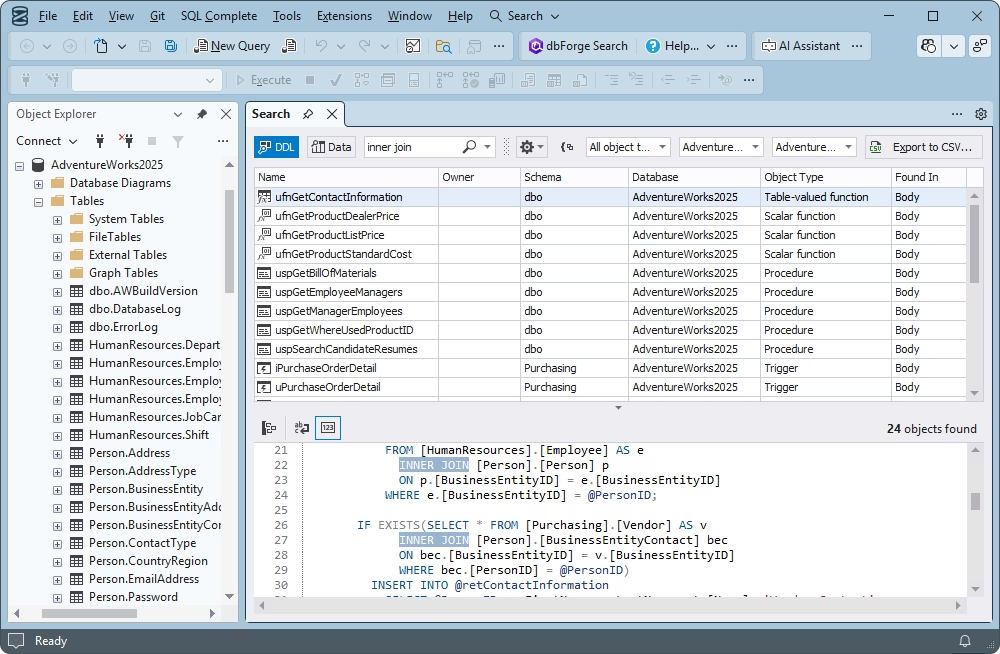
  • Find fragments of SQL in tables, views, stored procedures, and functions
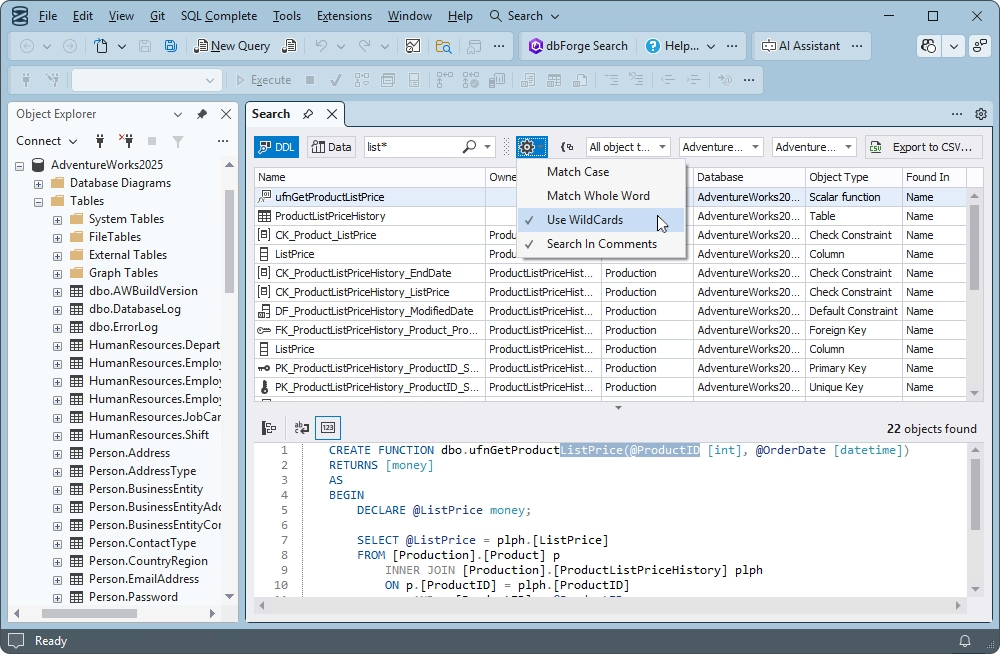
  • Use wildcards to substitute any characters in a search string
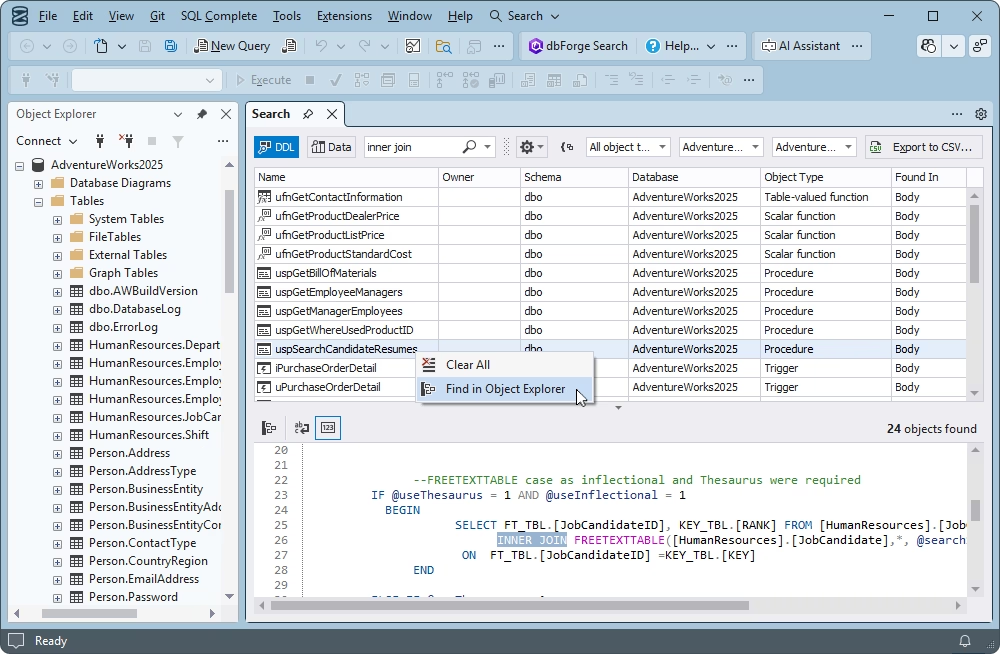
  • Navigate quickly to the object of search in Object Explorer
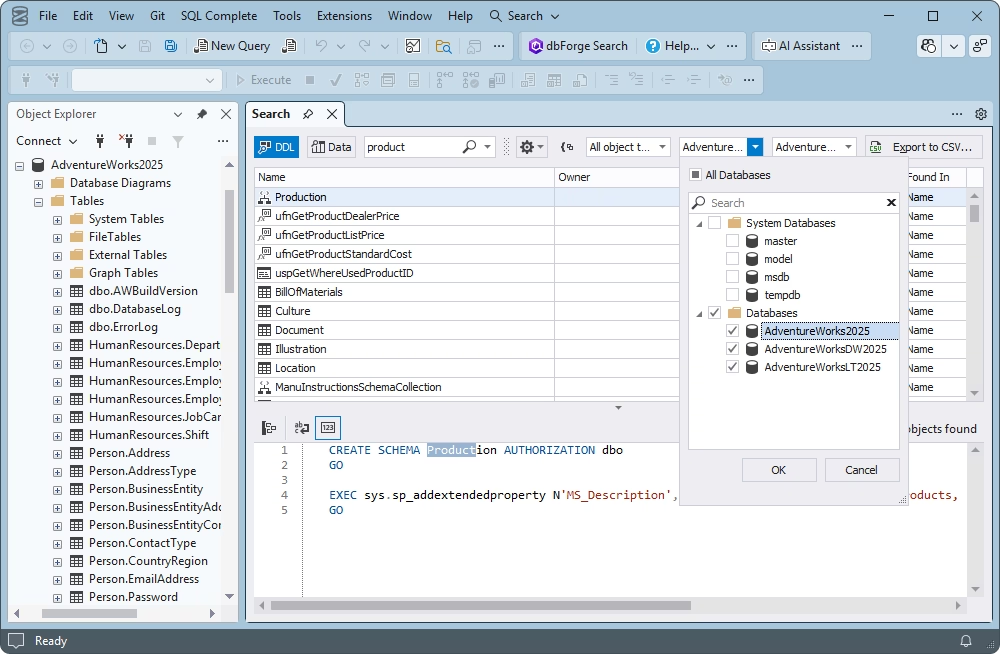
  • Search across multiple databases and object types
  • Perform object and data search in SSMS directly
  • Locate table data according to a search string
  • Sort and filter search results
  • Configure the search filter

Features

Meet the key feature of dbForge Search

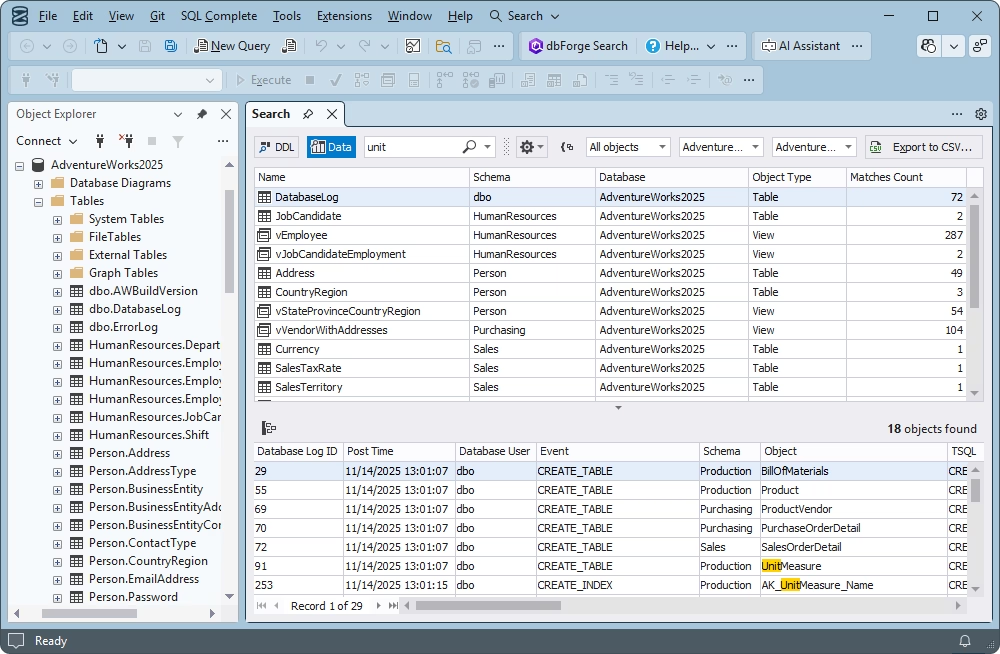
Search for the required data in the databases and locate the table, view, stored procedure, function, trigger, or other object that contains the data you are looking for within seconds. The results are displayed in a grid showing complete information about matching objects:

  • Name
  • Schema
  • Database
  • Object type
  • Matches count
Get the free tool

Customizable scope and filters (DDL/Data, case, whole word)

Choose between the two available search modes:

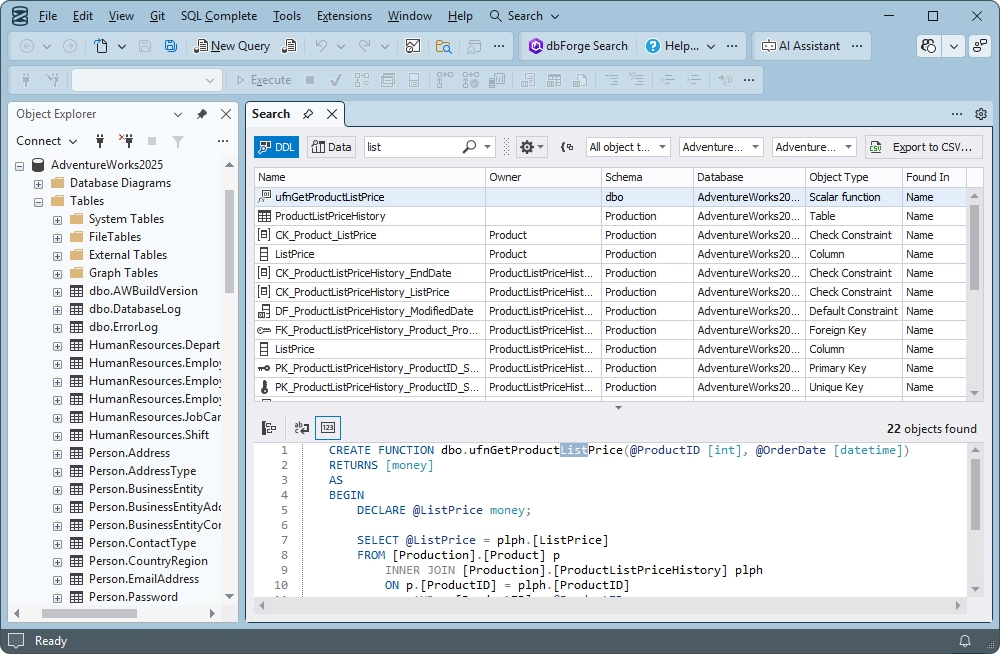
  • DDL (Data Definition Language), where you can search for text or objects within database schema definitions
  • Data, where you can look for the required data across one or several databases

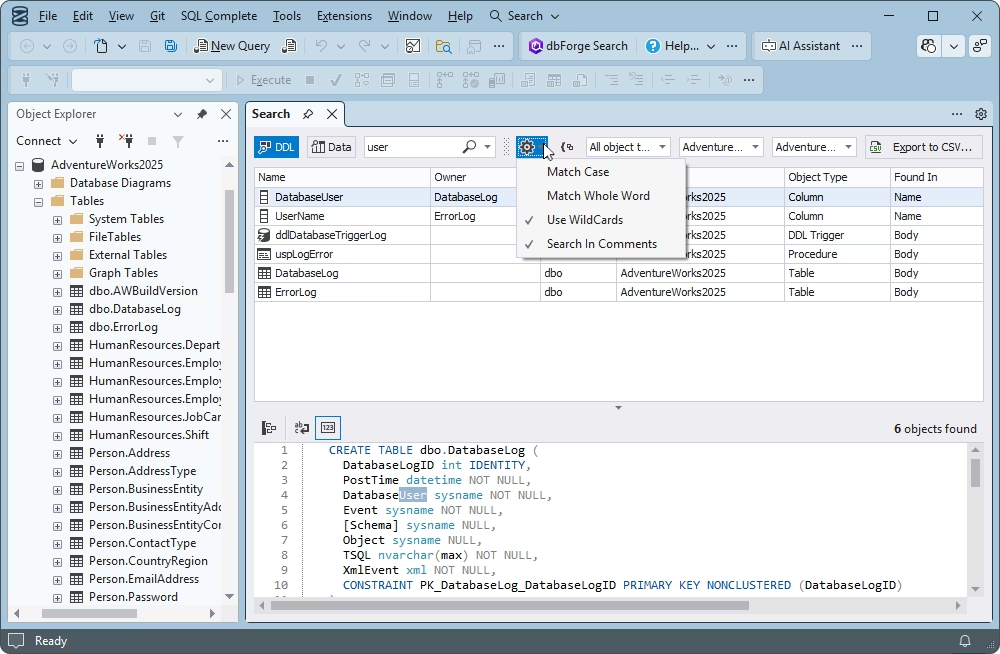
Fine-tune your search by enabling or disabling further search options:

  • Match case
  • Match whole word
  • Use wildcards
  • Search in comments
Get the free tool

Results management: Sorting, filtering, and grouping

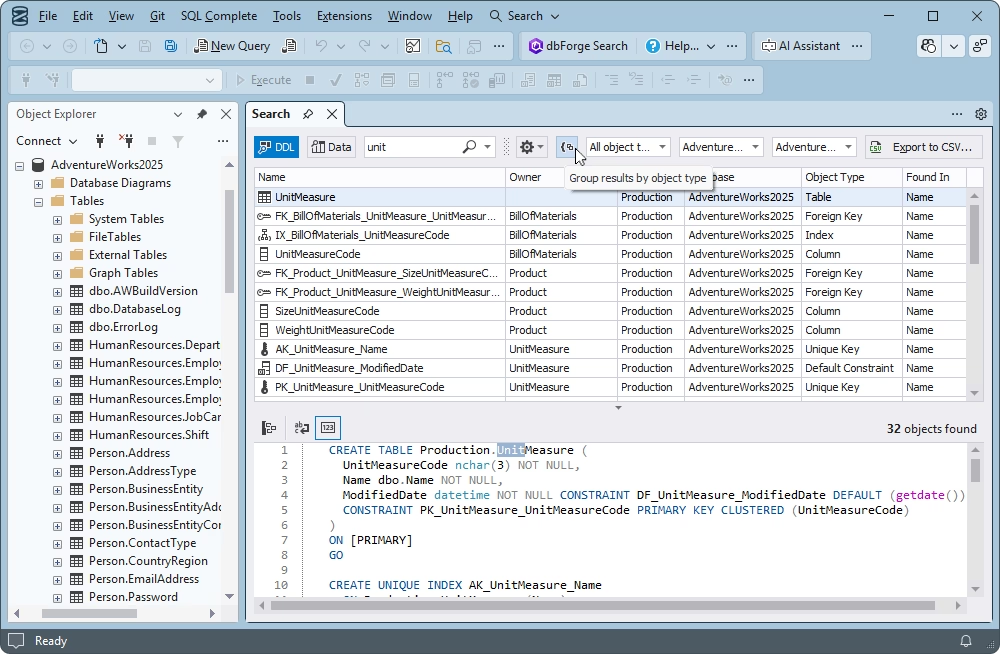
Arrange search results for better visibility and management. In dbForge Search, the following options are available:

  • Sort results by column in an ascending or descending order
  • Filter results by column
  • Group and ungroup results by object category
Get the free tool

Get more free SQL Server tools

dbForge

SQL Decryptor

dbForge SQL Decryptor

Decrypt encrypted stored procedures, views, triggers, and functions in SQL Server

Download for free
dbForge

Monitor

dbForge Monitor

An add-in for SSMS that allows you to track and tune SQL Server performance

Download for free
dbForge

Event Profiler

dbForge Event Profiler

Capture and analyze SQL Server events in trace files to optimize performance

Download for free

Leading companies choose dbForge SQL Tools

Berkley
Arconic
Polaris
Jabil
Hewlett Packard Enterprise
Lam Research
Microsoft

Frequently asked questions

What types of SQL objects can I search for in SSMS?

Using dbForge Search, an add-in for Microsoft SSMS, you can search for a variety of SQL objects: tables, views, stored procedures, triggers, functions, etc.

What's the difference between text search and data search?

In the Text search mode, you can search for objects by name or by text contained in their definitions. The tool searches across both object names and object bodies.

In the Data search mode, you can find the database object (table, view, stored procedure, etc.) that contains the required data.

Does wildcard search support partial matches and masks?

Yes, in dbForge Search, you can use wildcards to get partial matches. When you include wildcard characters and masks in the search string, you broaden your search and get a larger number of matching results.

Can I search inside procedures, views, and triggers?

Yes, you can search for data inside database objects, such as procedures, views, or triggers. Enable the Data search mode to find the required data within any object.

How do I filter results by schema, object type, or database?

dbForge Search returns search results as a structured grid with columns indicating the database, schema, and object type for each result. You can sort and filter the results by each column.

Can I jump from a search result directly to Object Explorer?

Yes, dbForge Search supports quick navigation in Object Explorer from the search results. Right-click the result you need and select Find in Object Explorer. The corresponding object in the database will be highlighted with the entire hierarchy shown.

How does the add-in handle large databases and performance?

dbForge Search is engineered for fast and efficient search without affecting the overall application performance, even with large databases. However, you can still accelerate it by narrowing down the search with filters and scope limitations.

What permissions are required to search for objects and data?

dbForge Search does not require special permissions to search for objects or data. You need general database permissions to view database data and objects.